Enabling and configuring the keyboard backlight on a laptop
You can turn on the keyboard backlight on a laptop only if it is installed there. This function is not implemented everywhere, therefore, first of all, you need to clarify whether there is such an add-on, so that if necessary, figure out how to enable or configure it correctly. Also, the backlight may have additional features, but to use them, you will need special programs.
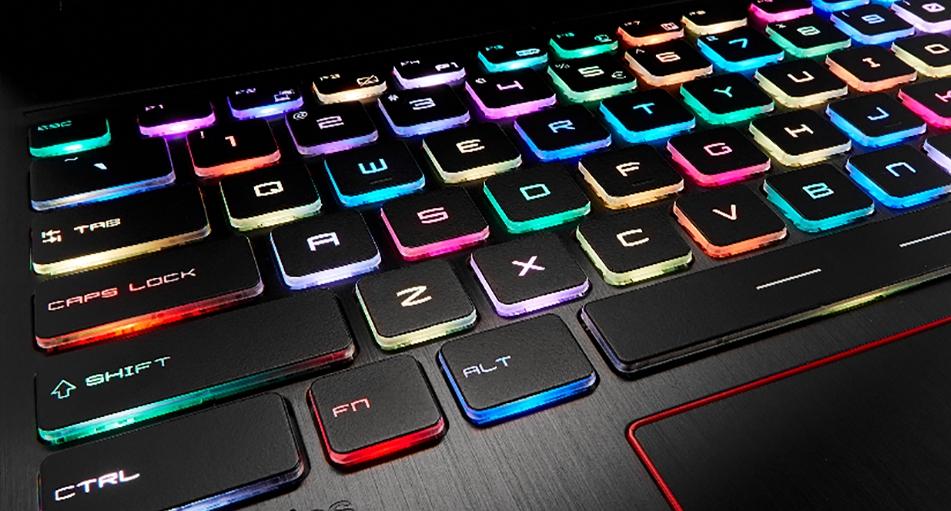
How to find out if there is such a function on a laptop, features of inclusion
Not all models are equipped with a backlight, but if you follow a few simple recommendations, you can quickly find out its presence and understand the features of the inclusion. Despite the variety of options on the market, the process is always about the same:
- The easiest way is to read the instruction manual of the laptop, if you have it at hand. Very often you can easily find an electronic version, usually it is written to a disk with drivers (if available).
- If you have Internet access, you can go to the laptop manufacturer's technical support website and find your model through the catalog. In technical information, the presence of backlighting is usually spelled out separately, so it will not be difficult to clarify this issue.
- Another solution is to enter a query in the search bar of the browser and read the results. You can just go to one of the thematic forums and find a thread dedicated to your model. If there is no data there, you can ask a question and get an answer from other users.
- It is worth carefully examining the buttons, if one of them has a small image of the keyboard, then most likely there is a backlight in the model. Often this symbol is highlighted in a different color for visibility, which will further simplify the search.
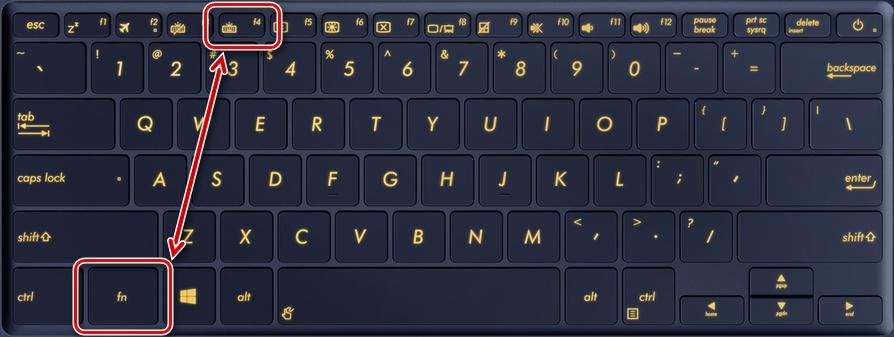
If it turned out that the laptop model has a backlight, but the buttons never light up, you need to figure out the features of the inclusion. Most often, a symbol with a keyboard is located on the functional row of keys (F1-F12) or on the arrows. To enable you need simultaneously hold down the Fn button and the one with the backlight symbolcombinations may vary. Usually after that it turns on.
Another option is a separate button located next to or on the main keyboard. Such solutions are also available in some models, it is still easier here - you just need to press to turn on the light.

If the wrong combination is pressed by mistake, then you can disable the function for which the accidentally pressed key combination is responsible by pressing them again.
Description of turning the backlight on and off depending on the manufacturer
To turn on the keyboard backlight on a laptop, you need to select the appropriate section and study the information for a specific brand. Usually this is enough to understand the topic if the system is in order and there are no failures or breakdowns.
Asus
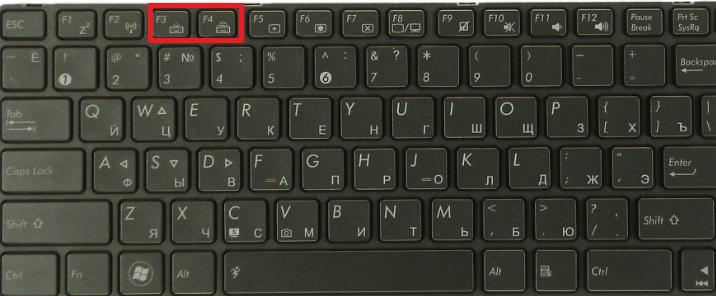
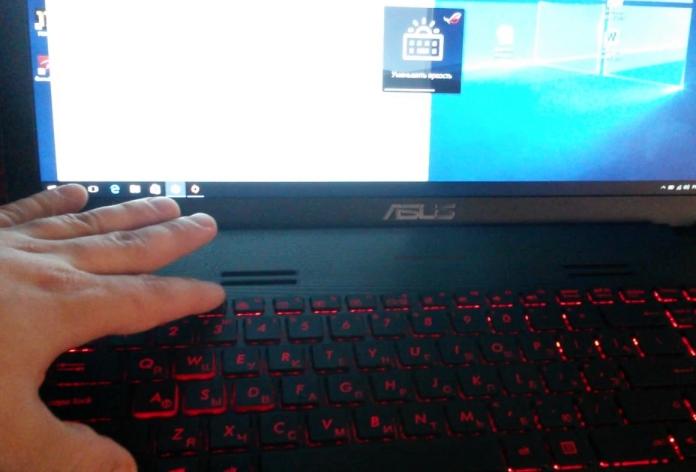
In Asus laptops, most often to turn on the keyboard backlight, you need to hold down the Fn + F4 button combination. If you keep it pressed for a while, you can increase the brightness.
If you press the F3 key instead of F4, the lighting will turn off. And if you hold without releasing, then the brightness will gradually decrease to the desired limit.
Some Asus models have a built-in light sensor. If it is active, then the backlight will turn on automatically when the light level is below the set norm.
Video instruction for setting up Asus:
Acer
In equipment from this manufacturer, the light is most often turned on by simultaneously pressing the Fn and F9 keys. If you need to disable the function, press the same combination - everything is simple.
Some advanced models have a button called Keyboard backlight. In this case, the lighting is turned on and off by pressing it. Most often it is located on the left side.
The video will help you turn on the backlight of the keys on the Acer Nitro5
Lenovo
This manufacturer produces many inexpensive models, so they are often found among users. Everything is simple in it - to start the backlight, you need to click on the Fn and Space keys, it will turn on with medium brightness.
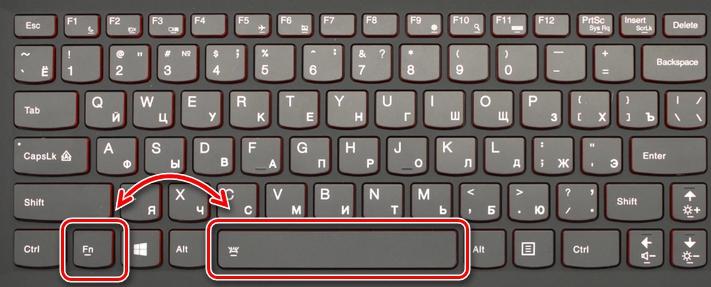
If you need to increase the intensity of the backlight, you must once again hold down the above combination of buttons. The same must be done if you want to turn off the light altogether. There are no other options in Lenovo, which greatly simplifies the process.
Lenovo laptop setup video.
Sony
In laptops from this manufacturer, you need to control the backlight of the buttons with using the VAIO Control Center. In it, the “keyboard” item is selected, in which there is a “keyboard backlight” tab.
Most often, the system is configured to automatically turn on and off depending on the lighting around. If the function is not needed, you need to put a dot on the item "Do not turn on" and save the changes.
By the way! You can select a mode so that the button backlight does not turn on when the laptop is running on battery power. In this case, if the equipment is connected to the network, then everything will work normally, and if it is powered by a battery, then the light will not light up to save energy.
Also in the application, you can select the mode of operation when idle. There are options to turn off the lighting after 10, 30 and 60 seconds. Or you can put a bird on the item that prohibits turning off the light, even if the laptop is idle for a very long time.
SONY laptop repair video.
Samsung
In many Samsung models, the backlight turns on automatically due to the built-in photocell. If this does not happen, you should try to enable it with the Fn and F4 key combination.
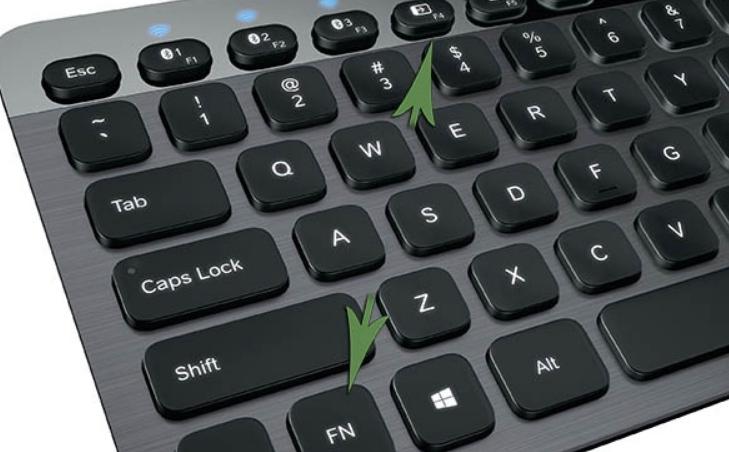
If this option does not help, you should look for the button with the image of a flashlight and press it simultaneously with Fn or F4. Switch off with the same combination.
HP
In order for HP laptops to have a backlight, you need to purchase models from the Pavilion line, they always have this function. Usually everything works by default, but sometimes you need to turn on the light in one of the following ways:
- In some modifications, the F5 or F12 button is responsible for this, it all depends on the model.
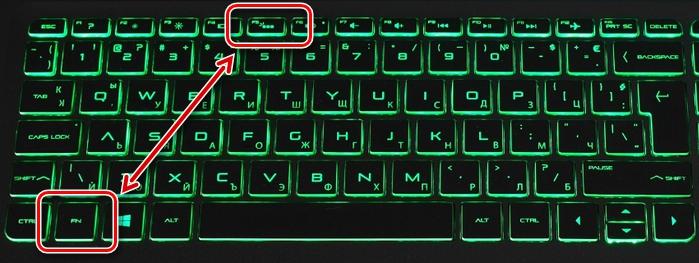
- If there is a symbol of three horizontal dots on the left side of the space, then you can turn on the backlight by simultaneously pressing this button and Fn. It is disabled in the same way.
- In the DV6 line of models, there is a separate button responsible for the backlight, indicated by three horizontal dots.
When the light goes out quickly and this causes inconvenience, you need to set the timeout to a convenient time. To do this, go to the BIOS and find the "Advanced" item there. In it, select the “Built-in Device Options” tab, in which hover over the “Backlight keyboard timeout” line and press the spacebar to open the settings.
In the window that opens, select a delay so that the backlight turns off at a convenient time. There you can also turn off this function, if necessary, so that the buttons are constantly lit.
After watching the video, you will learn how to enable the FN keys on an HP laptop
Dell
Dell laptops have different options for turning on the light on the keyboard, it all depends on the model. The combination always consists of two buttons, the first is always unchanged - "Fn", and the second can be F6, F8 or F10.
It is also possible to configure the mode through the BIOS. There, in the "System Configuration" tab there is an item "Keyboard backlight", in it you should select the settings. In Dim mode, the brightness will be medium, and in Bright mode, it will be maximum. There you can disable the feature so that it does not work. This is the only way to adjust the brightness.
Video example of turning on the keyboard backlight on Dell through BIOS
Huawei
This brand also began to produce high-quality Huawei MateBook laptops, which resemble the well-known MacBook not only in name, but also in appearance. In some modifications, there is a separate button to turn it on, which works in 3 modes - off, dimmed light and bright backlight.
For some models, you need to press a combination of Fn and one of the function row keys with a backlight icon. The system in this case is the same - the first press turns on the dim light, the second press bright, and the third turns it off.
MSI
The company produces laptops for gamers, so in almost all models the keys are backlit, and in many the lighting is made unique to distinguish equipment from the general range. In this case, the options for inclusion and settings may vary.
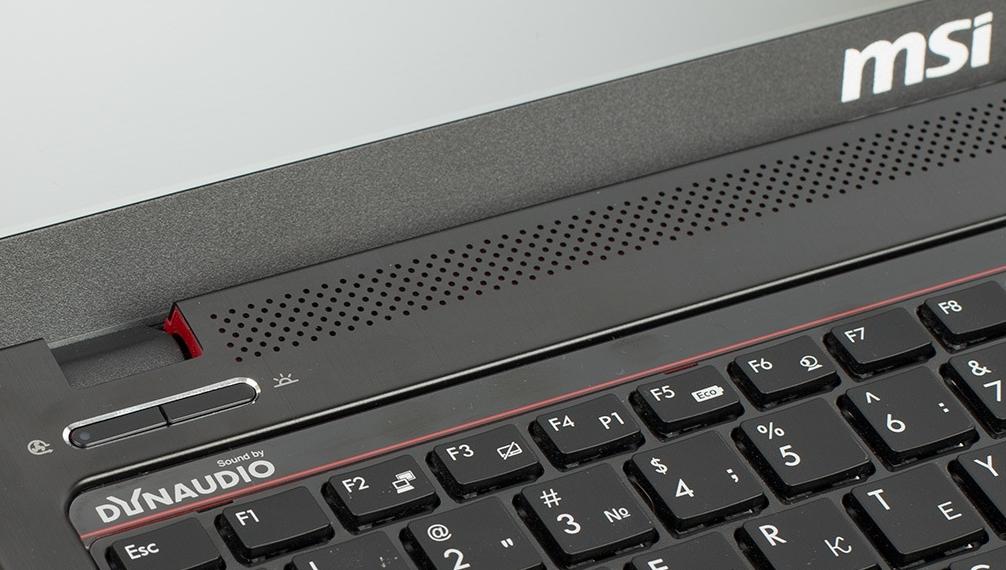
Most often, there is a separate button at the top of the MSI notebook above the main keyboard. Or you need to press one of the hot keys in combination with Fn. The setting can also be done with buttons, the combinations are different.
Many models have a special utility that not only sets the backlight parameters, but can also change its colors or provide an iridescent effect.
To turn off the light, you need to press the same thing as to turn it on, but in some cases you need to click on the Fn button several times in a row.
macbook
In all the latest models from this manufacturer, the backlight turns on automatically when the lighting falls below an acceptable level. The built-in light sensor is responsible for this. Some operating parameters are manually configured through hot key combinations.
To set the time that the system will work when idle, you need to click on the item boot camp, which is located in the taskbar. There should be a tab Boot Camp Control Panel, in which the settings are set.
From the video you will understand what to do when the keyboard backlight does not work on a MacBook
Microsoft Surface
If you use this hybrid laptop model, then adjusting the backlight of the buttons is not difficult. To turn on the light or increase its brightness, you need press and hold the Alt and F2 buttons at the same time.
If you need to reduce the brightness, use keyboard shortcut Alt and F1. No other settings are provided.
How to change keyboard backlight color
First of all, it is necessary to clarify which LEDs are used to illuminate the keyboard in the laptop. If they are single-color, then you will not be able to change the color due to the settings. But if they stand RGB diodes, then adjusting different shades is easy. The main thing is to understand the features of the process, which depend on the laptop model:
- On Dell models, you need to enter the BIOS and in the system settings, find the item "RGB Keyboard Backlight". There you can change the standard colors (green, white, blue and red) or add custom options, for this there are special input fields on the right side of the screen.After making changes, be sure to save them, then you can exit the BIOS and restart the laptop.
- Many laptops use apps to adjust and adjust colors. These can be both developments for a specific brand, and universal programs (for example, Steel Series Engine), which allow you to work with most models.
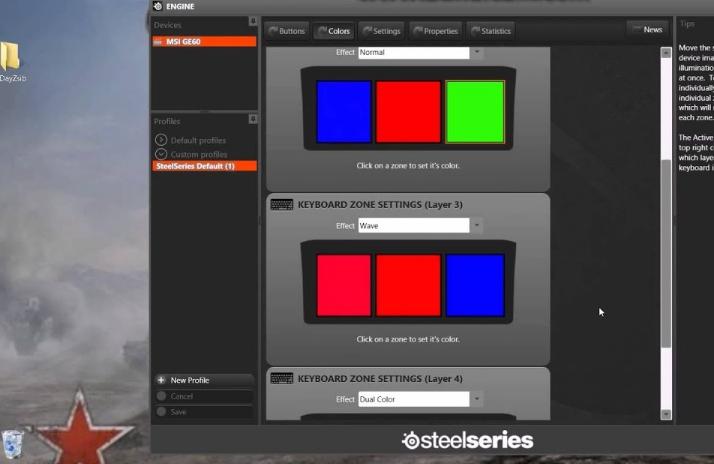
If desired, you can change the color of the buttons, even in variants where there is no such function. There are two solutions, one is simpler and the other is more difficult:
- Disassemble the keyboard and stick a translucent film of the desired color on all transparent elements through which light passes (these can only be letters or the outlines of buttons). The work is simple, but painstaking and requires accuracy. As a result, the shade will change to the desired one.
- The second way is more radical. It should be used by someone who knows how to work with a soldering iron. It is necessary to choose LEDs with the same characteristics and fastening that are installed in the backlight, but use not plain, but colored ones. Solder diode after diode in order and solder a new one in its place.
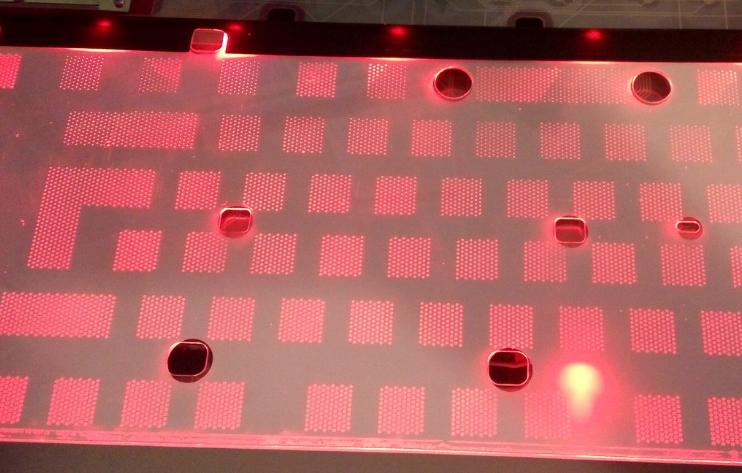
Solder diodes you can also use a small burner, warming up the seat for a short time to melt the solder.
If the system was reinstalled, then you need to install drivers for all devices used in the laptop, including keyboard backlight. Without this, the lighting will not work, moreover, the keyboard itself may not work correctly, especially if there are additional keys.
If you don't have a driver disk handy, you can find it online. To do this, you need to know the model of your device and enter a query in a search engine. It is better to download the driver from the official site manufacturer or from well-known portals with a good reputation. Most often, in order for the changes to take effect, you must restart the laptop.
Why the backlight does not work, possible causes and solutions
If the laptop model has a backlight, but it does not turn on with the desired key combination, there may be several reasons. They are different from each other, so you need to understand each:
- The backlight is disabled in the BIOS. The most common situation is when you need to enter the BIOS, find the appropriate tab and put a dot opposite the on (or remove it opposite the shutdown). Features depend on the laptop model, there is detailed information on the network, so it’s easy to figure it out.
- You need to update Windows 10. Often, violations occur due to hardware failures or outdated drivers, which leads to conflicts and the backlight stops working. Updating and troubleshooting will help resolve the issue.
- If the backlight sensor is responsible for turning on, it may be the cause of the malfunction. Due to the failure of the sensor, the light will not turn on even through the buttons, so it will have to be replaced.
- Sometimes the problem is in the backlight control circuit on the motherboard. In this case, you need to give the laptop to the service to fix the breakdown.
- Also, the reason may be in the ingress of moisture into the keyboard. In this case, you can try to clean it, if this does not help, you will have to replace the button block.
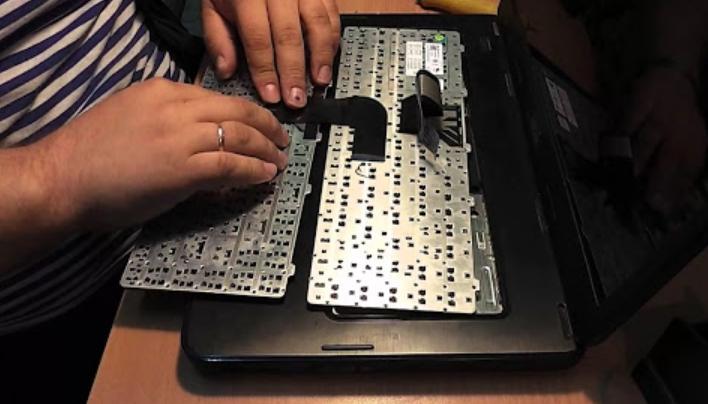
It is not difficult to figure out how to turn on and configure the keyboard backlight on a laptop if you study the features of the model and activate the work in the BIOS. If after that the problem is not solved, you need to look for a malfunction and fix it.

